
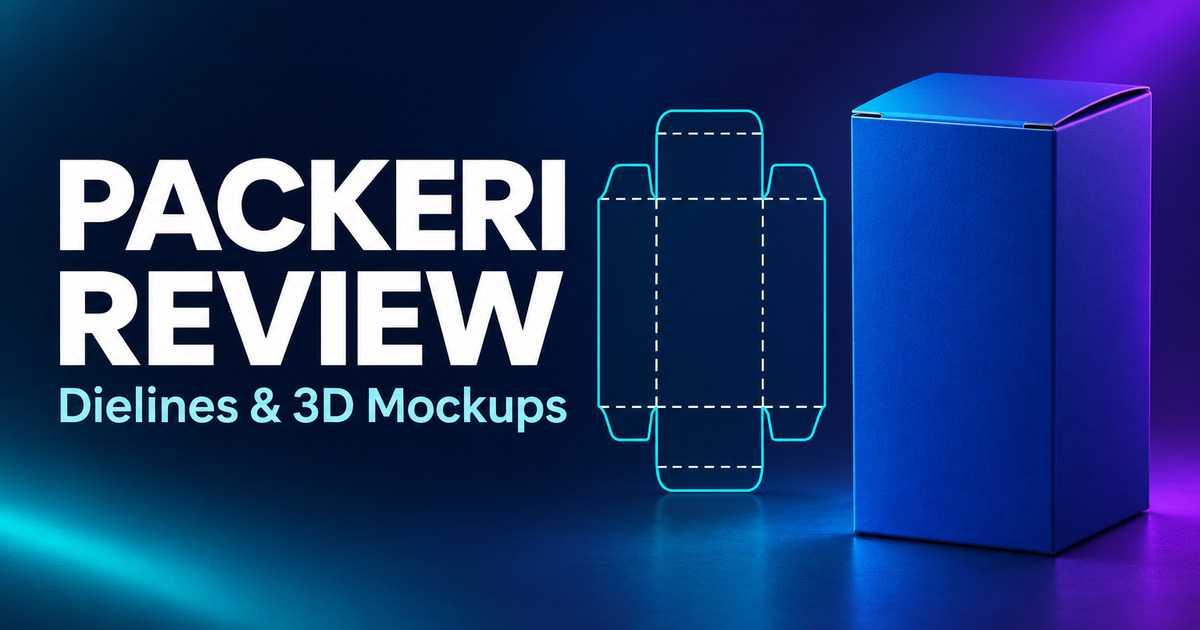
A box dieline can look right on screen and still give you trouble once it folds. A logo that sits neatly on the flat artwork can end up too close to a crease. A carton sized from outside measurements may not leave enough room for the product inside. These are the kinds of problems I wanted to catch earlier when I built Packeri.
Disclosure: I’m Md Arifur Rahman, the designer behind Tanur Graphics and the founder of Packeri. This is my review of a product I built, and I benefit from sales. The AppSumo buttons below use my partner link.
My take: Packeri is most useful when you need a custom-sized version of an existing package structure and want to see the artwork on the folded box before ordering a sample. It gives you a quicker starting point for standard packaging jobs. I would still work directly with a converter for an unfamiliar closure, unusual material, or a carton that has to run on a specific packing line.
Compare Packeri plans | Check the AppSumo offer
In this review: How it works · AppSumo deal · Packeri plans · FAQs
What is Packeri?
Packeri is an online packaging dieline generator and 3D mockup studio. A dieline is the flat drawing that tells you where a box is cut and folded. Packeri generates that drawing from the structure and dimensions you enter. The structure library includes folding cartons, corrugated shipping boxes, mailers, sleeves, trays, and inserts. On supported structures, you can preview artwork on the folded form in the 3D Mockup Studio.
Packeri currently offers 48 customizable dieline structures. We’re actively developing more, so the library will keep growing as new structures are ready.
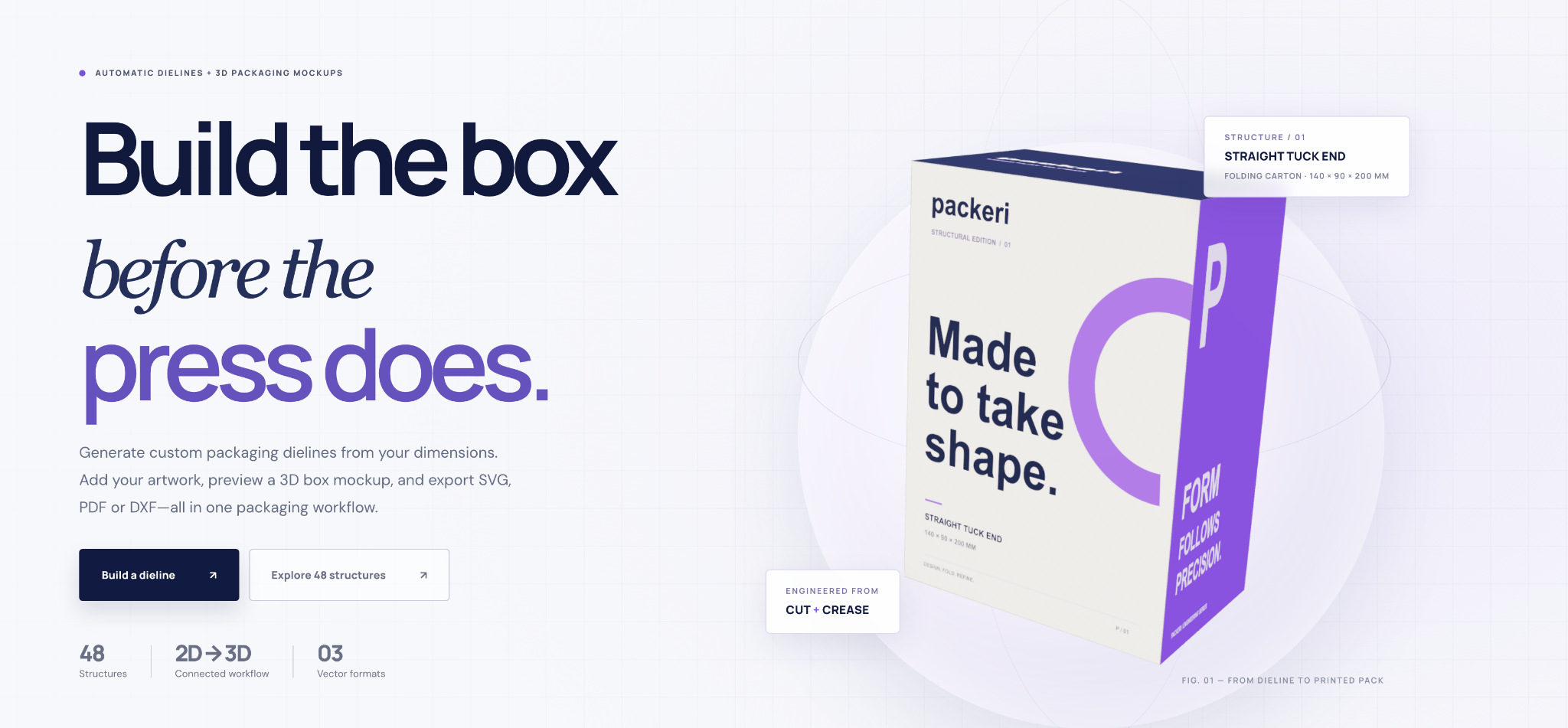
If you’ve ever downloaded a static box template and stretched it to fit your product, you’ll understand why that matters. Resizing the entire drawing also stretches the flaps and changes the depth of the box. With a parametric dieline, the tool recalculates the supported structure from your inputs. You can still do the artwork in your usual design software.
How I’d use Packeri on a real packaging brief
Suppose you’re designing a folding carton for a small skincare product. Here’s where I’d use Packeri, and where I’d hand the job to the printer or converter.
1. Choose the structure before designing the artwork
Start with the product, any insert it needs, and how the customer should open the box. I’d compare a straight-tuck carton with a reverse-tuck carton before laying out the front panel. The top and bottom tuck in the same direction on a straight-tuck carton and in opposite directions on a reverse-tuck carton. That choice affects how the carton opens and where seams and folds interrupt the artwork.
2. Generate a dieline using the dimensions you actually need
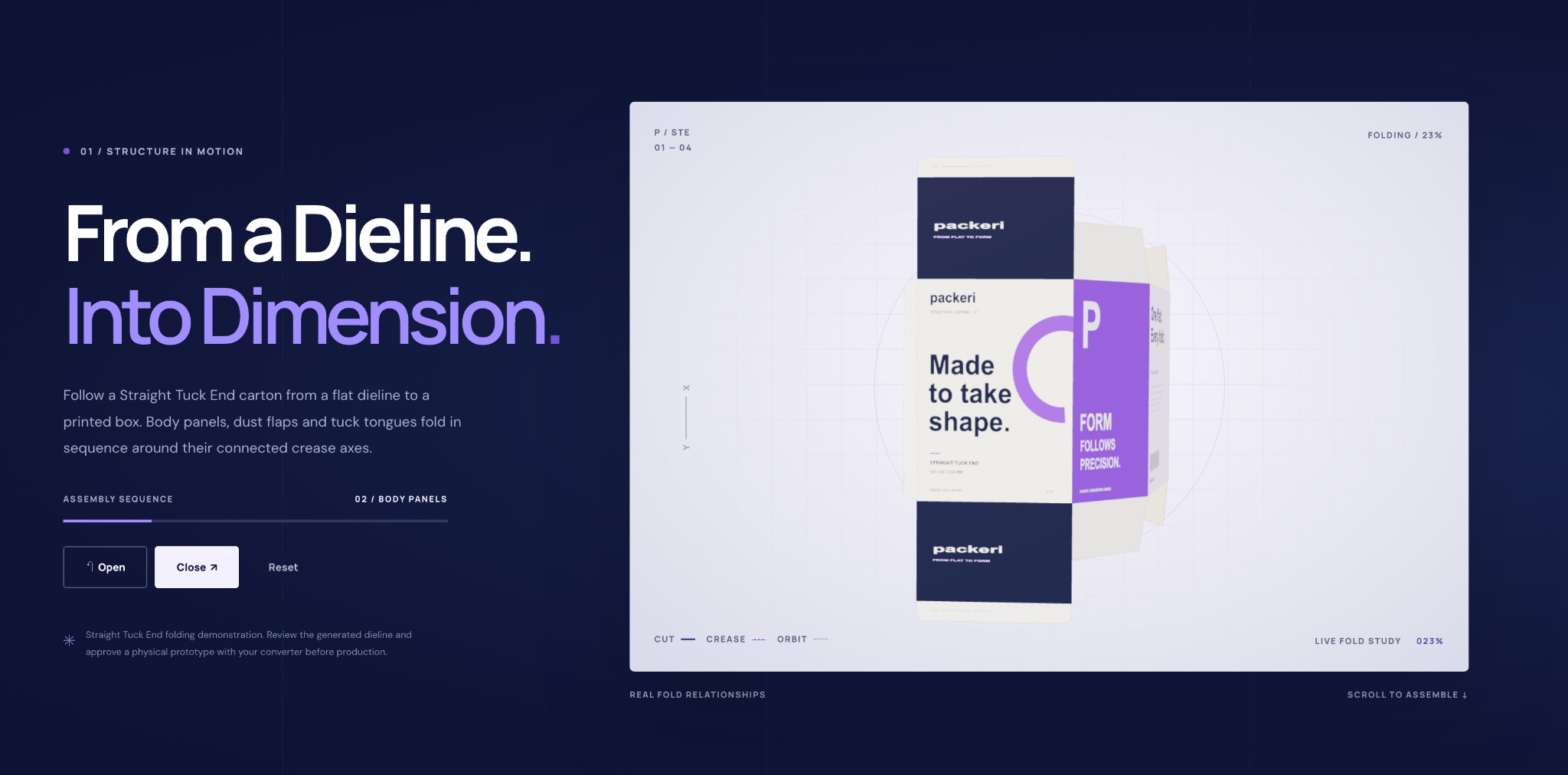
In the dieline generator, choose inner dimensions if you’re working from the usable space the product needs, or outer dimensions if the completed carton has to fit a fixed footprint. Enter the measured board thickness (caliper), rather than assuming that the paper weight in gsm tells you the thickness. Inspect the cut and crease lines before laying out the artwork. Packeri offers SVG, PDF, and DXF exports on eligible plans; choose the format your artwork or CAD workflow calls for.
3. Check the artwork in 3D, then make a sample
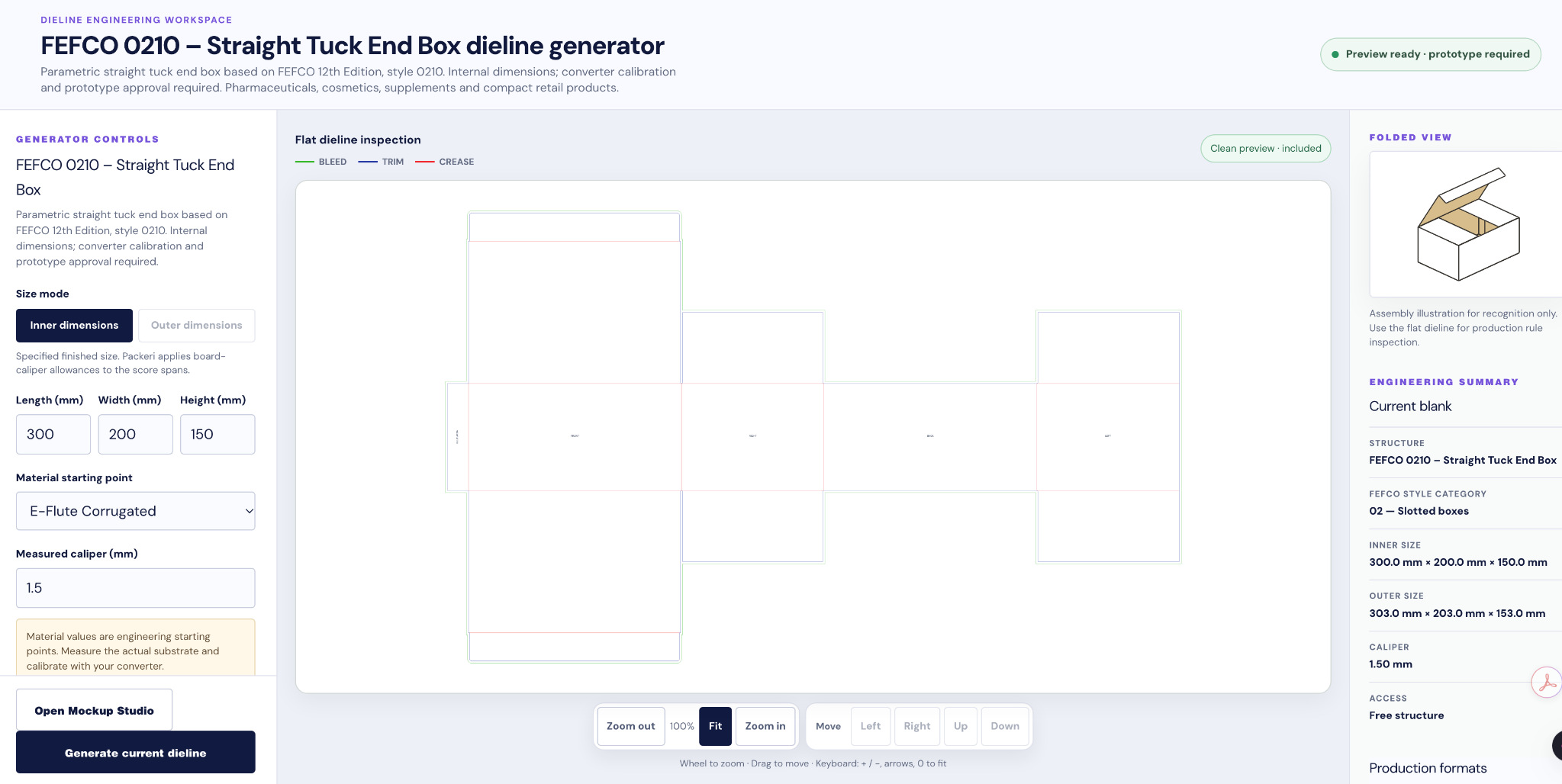
Place the artwork on the supported folded structure in the Mockup Studio. Rotate the carton and look at the sides and top, not just the front. Is the side text the right way up? Do two panels that meet at a corner look right together? Did a claim or barcode land too close to a fold? A 3D preview makes these questions easier to answer while revisions are still inexpensive.
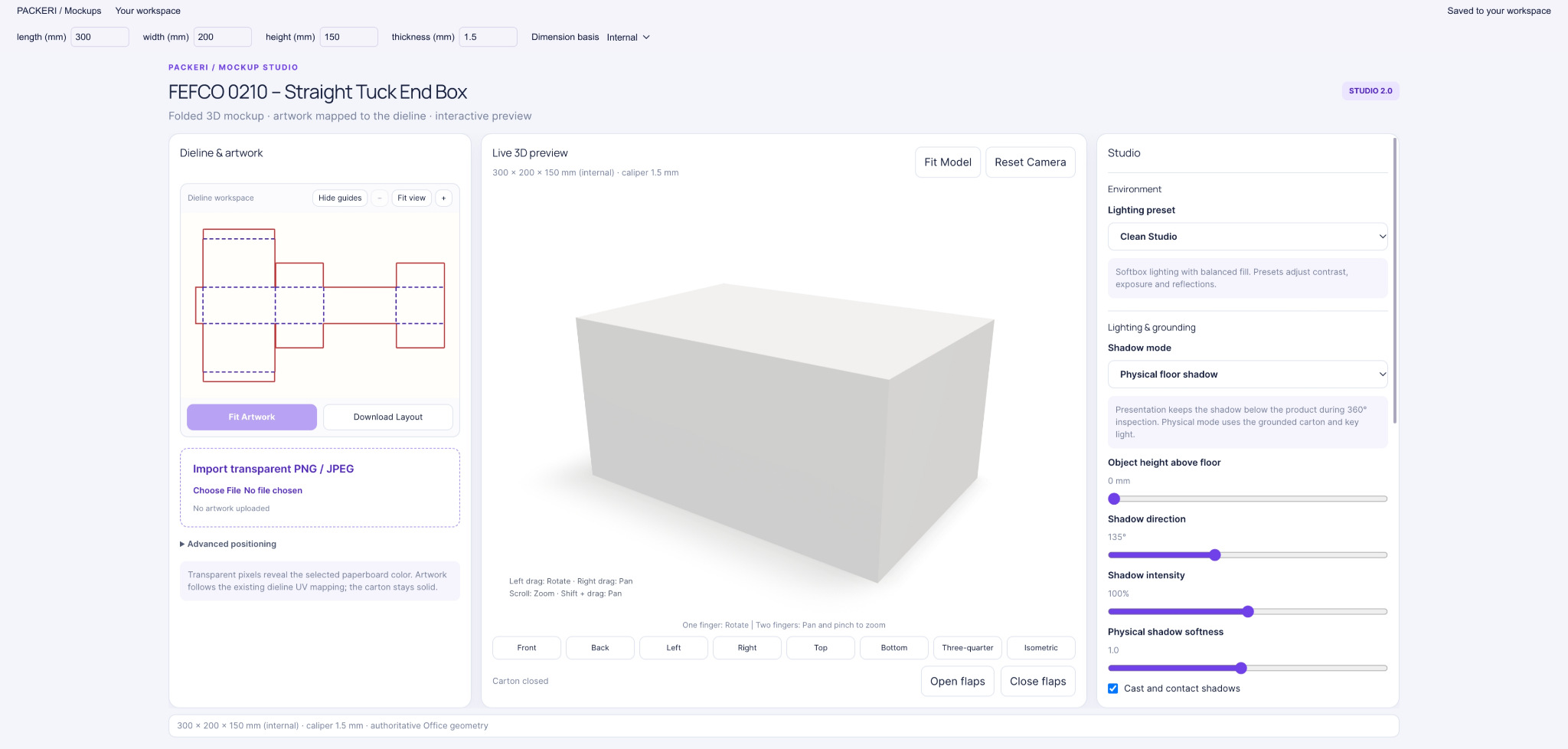
After that, I’d send the dieline to the converter and ask for a physical prototype on the intended board. Check how the product fits, how the flap closes, and how the material behaves at the crease. Confirm grain direction, tolerances, glue areas, and tooling with the converter before approving production. For the artwork handoff, start with the Tanur Graphics packaging artwork preflight checklist.
Who should use Packeri?
- Freelance packaging designers: A starting point when a client gives you product dimensions but hasn’t supplied a dieline. Also useful for presenting a folded carton alongside the flat artwork.
- Small brands and startups: Compare standard box styles before requesting samples. If you only package one product occasionally, try the free tools before buying.
- Studios with repeat packaging work: Compare plans against two numbers: how often you re-export files during revisions and how many projects you need to keep available.
Where I’d use something else: If your converter already supplied a validated dieline, use that file for final artwork. If your brief needs a bespoke lock, specialized insert, or full tooling design, talk to a packaging engineer or converter early. A convincing render won’t verify fit, print color, or machine performance.
Packeri’s AppSumo Black Friday deal: which tier fits?
AppSumo lists Packeri as a one-time, lifetime purchase through AppSumo Radar, its early-stage product section. Here’s the public listing snapshot from November 24, 2026. All prices are in USD.
| AppSumo tier | Black Friday price | Listed regular price | Exports per month | Saved projects |
|---|---|---|---|---|
| Solo | $44.10 | $49 | 15 | 10 |
| Studio | $143.10 | $159 | 60 | 50 |
| Professional | $270 | $300 | 120 | 100 |
The listed tiers all include the full structure library and the 3D Mockup Studio with artwork upload. Solo is where I’d start for occasional jobs. I’d pick Studio if weekly client revisions regularly push me past 15 exports a month. I’d pick Professional if I needed more than 60 monthly exports or enough space for a larger active project library. Don’t assume that “lifetime” means unlimited usage.
AppSumo’s Black Friday banner stated December 1, 2026, at noon Central Time as the campaign deadline. The listing says to activate within 60 days of purchase, does not allow stacking, and shows a refund window of up to 60 days; Radar purchases are excluded from AppSumo’s separate “We Got Your Back” guarantee. Confirm the current price, availability, saved-project terms, and purchase conditions on the AppSumo listing before paying.
See current Packeri tiers on AppSumo
Should you buy directly from Packeri instead?
Try Packeri’s direct plans if you want to inspect a real job before you commit. The Free plan covers selected structures and two SVG exports per month, without access to the 3D studio. The three-day Pro trial requires no card and ends without automatically charging you. At the time of writing, direct Pro pricing is $14.99 per month or $159.99 per year. Direct Pro Annual lists up to 180 saved projects, while its dieline export allowance is 25 per month. If you need to keep lots of projects and export infrequently, that distinction matters more than the headline price.
I’d test the structure you use most often: generate a dieline, open an export in your usual software, and see whether the preview answers a real artwork question. If it does, choose the least expensive plan that covers your realistic workload. If the AppSumo offer has ended, you can still compare the direct options.
Try Packeri or compare direct plans | Check AppSumo availability
Frequently asked questions
Can I make a free packaging dieline with Packeri?
Yes. The direct Free plan lets you explore selected packaging structures and download up to two SVG exports each month. Use the Pro trial to evaluate the 3D studio before choosing a paid plan.
Which dieline file formats does Packeri export?
Eligible paid plans support SVG, PDF, and DXF. SVG or PDF can be useful for vector artwork; ask your converter which format they need for structural review or CAD handoff.
Can I preview my own box artwork in 3D?
Yes. On supported structures, the 3D Mockup Studio uses generated packaging geometry so you can see your uploaded artwork on the folded box and inspect how it crosses panels and folds.
Do I still need printer or converter approval?
Yes. Confirm material and tooling requirements, and test a physical prototype before mass production. A 3D mockup is useful for artwork review but cannot validate those production details.
What’s different about the AppSumo lifetime deal?
AppSumo lists three one-time purchase tiers with their own monthly export allowances and saved-project limits. The direct Packeri plans are separate and have different terms. Compare the current listing and Packeri’s pricing page rather than assuming the tiers are equivalent.